Google's current Gemini Apps help page describes Nano Banana 2 for image generation and editing and lists Lite and Pro routes alongside it. The same page provides separate workflows for creating, revising, combining, downloading and exporting images.
A usable artificial intelligence (AI) image prompt does not depend on a fixed phrase. It needs a concrete subject, action, setting, composition and output purpose, while an edit also needs a clear boundary around what must remain unchanged. Account eligibility, available controls and quotas still have to be checked in the signed-in interface because Google's public pages say access can vary.

Google now uses three Nano Banana labels
Google's August 26, 2025 product announcement presented Nano Banana as an upgrade to native image editing in the Gemini app, with likeness preservation, photo blending, multi-turn edits and style transfer. Google also said at the time that images created or edited in the app carried a visible watermark and an invisible SynthID digital watermark.

Google's current help page says Nano Banana 2 Lite is used when Gemini is set to Flash-Lite, Nano Banana 2 is selected for image requests made with Flash or Pro, and Nano Banana Pro is available through a Google AI plan when Pro is selected. Lite is positioned for quick, basic images and is not designed for multiple references or repeated edits. Nano Banana 2 accepts multiple reference images, while the Pro route appears as a paid “Redo with Pro” option for more detail and control.

Image generation starts in Gemini's Images section
Google's published desktop route opens Gemini's sidebar, selects Images and then starts from a template or a written prompt. Its prompt tips recommend beginning with a verb such as “draw,” “generate” or “create,” naming a visual style and describing the subject, action and background in detail.

A first request can describe one bounded scene: “Create a photorealistic image of a dark bicycle on a rain-wet city street at dusk; use a horizontal composition, keep the bicycle in the center and leave clear space on the right for a headline.” That wording identifies the subject, setting, style, framing and intended text area without relying on a local landmark that may be unfamiliar to an international reader.
Seven fields make prompt revisions traceable
Google explicitly recommends describing image style, subject, action and background. APPI News adds composition, exact text and output requirements because those fields affect whether an image can be used in a publication or layout. The resulting seven-field structure is a working method rather than a command format required by Google.
| Field | What to specify | Example |
|---|---|---|
| Subject | Object, person, quantity and appearance | One white ceramic cup with a thin blue line |
| Action or state | What the subject is doing or how it is placed | Resting on a wooden table beside an open book |
| Setting | Background, time, light and location type | Beside an apartment window in early morning light |
| Style | Visual treatment and material | Realistic product photography with natural color |
| Composition | Aspect ratio, viewpoint, position and empty space | Horizontal, eye level, cup at left, blank area at right |
| Text | Exact string, language, position and direction | Add “OPEN TODAY” in white at the upper right |
| Output | Use, dimensions and elements that must remain | Article header; retain the cup shape and wood grain |

The field structure makes a failed output easier to diagnose. If the cup dominates the frame, the next request can limit it to about one-third of the image width; if a person faces the wrong direction, the revision can specify both position and gaze. Adjusting one condition at a time preserves a clearer comparison with the previous output.
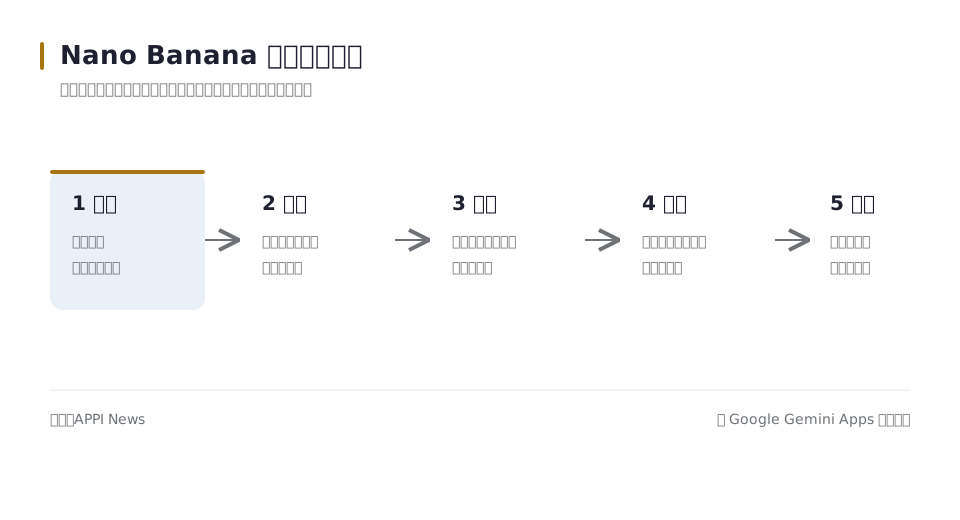
The diagram below condenses the visual description into five stages, with text added only when the image needs it. An editing request should also state the elements that must remain unchanged, either in the output stage or immediately after the requested modification.
Gemini provides three editing routes
For an image already generated in Gemini, Google's desktop instructions open Library, select the image, choose Chat, enter an edit prompt and submit it. This route keeps successive requests in the image conversation, although the output still needs comparison with the original after every change.

A second route uploads an existing image and separates the change from the preservation rules. One request could say: “Change only the background to light gray and remove the paper on the right; retain the cup's shape, blue line, position, size, wood grain and original lighting.” The two clauses make the intended edit and the protected elements independently visible.

Google's 2025 announcement also described combining multiple uploaded photographs into a new scene and applying the visual style of one image to an object in another. A multi-image prompt can assign one role to each input, such as subject, clothing and background, then identify which features may be blended and which must stay intact.
Local edits need boundaries and a reference point
A local-edit prompt should identify a position and an object rather than use a broad phrase such as “clean up the image.” A bounded request might read: “Remove only the passerby in the upper-left corner; retain the buildings, signs, shadows, other people and aspect ratio.” If unrelated areas change, the original image provides the reference for a narrower restart.
Google illustrated multi-turn editing by changing the wall color in an empty room before adding a bookshelf, furniture and a coffee table in later turns. Separating a background change, color adjustment, object addition and text insertion creates a record of when an unwanted difference first appeared.
Google lists character consistency and the ability to blend scenes or ideas from multiple images among Nano Banana 2's features. That capability description is not a guarantee that every face, hand, accessory or clothing edge will remain identical. Prompts involving a person or animal can name the hairstyle, glasses, fur pattern, clothing, pose and camera angle that require inspection.
Text and composition require separate checks
Google describes Nano Banana 2 as offering better text rendering across supported languages. A prompt can still provide the exact string, language, case, position, direction, color and exclusion area, such as: “Center the words ‘WEEKEND MARKET’ at the top in bold white letters and keep the text clear of every face.” Names, prices, dates, punctuation and web addresses need character-by-character review after generation.
Composition should follow the destination. A square social image may keep the subject centered with clearance around every edge, while a horizontal article header may put the subject on the left and reserve the right for a headline. A product image can specify the object's share of the frame, camera angle, background and shadow direction so a later crop does not remove the subject or text.
Access depends on age, account, country and plan
Google says Nano Banana Pro is available through a Google AI plan and warns that a user who reaches the daily Nano Banana 2 image quota cannot make further Pro redoes. The public page does not promise one fixed number of images to every account, and the available model or button can change with the selected Gemini model.
Google's general limits page describes compute-based usage that considers prompt complexity, model, feature and chat length, with a five-hour refresh until a weekly limit is reached. It also says limits may change because of testing, availability or capacity. Public pages do not display the exact allowance remaining for a particular signed-in account.
The site's guide to Google's student AI offers documents why plan names, eligibility and renewal terms must be checked by country and account. A discounted or no-cost student plan does not establish that the same image model, button or quota appears for every participant.
Google lists image downloads at 1K resolution without a Google AI plan and 2K with one. Those labels describe a plan difference in downloads, not a guarantee that every preview, crop or account provides identical dimensions. Print, product and large-format uses still require checks of pixel dimensions, aspect ratio, detail and compression quality.
Google requires a personal-account user to be at least 18 to edit images, while image generation is available from age 13 or the applicable age in the user's country. Work and school accounts may have other restrictions. Google lists the Gemini web app in more than 70 languages and over 230 countries and territories, while warning that mobile availability may differ; support for the web app does not establish access to every image feature.
APPI News could not verify the account-specific controls, quotas or paid entitlements shown in every supported country at the time of writing. A missing control may reflect the account, selected model, app version, country, age rule, plan or a later interface change; the signed-in account and current Google help page are the available checks.
How this plays out outside Taiwan
For readers in the United States, Singapore, the United Kingdom and Australia, the first practical check is not a social-media post about Nano Banana. Google’s official Gemini limits page lists all four markets among the places where Google AI Pro and Google AI Ultra are available, but that country-level listing does not mean that every image control, mobile feature or promotional offer is identical. Open the Gemini account while signed in, then compare the model selector, the image button and the usage panel with the current Google help page. If a paid route is the reason for choosing Nano Banana Pro, start from the Google One page for the account’s billing country rather than converting a price shown in another market.
Singapore is a useful example of why the billing page matters. Google’s Singapore-localized Google One page presents Google AI Pro as a local subscription route and identifies country-dependent benefits. The page may change its displayed currency, plan names or introductory offer, so the amount shown at checkout is the relevant price. A user who pays through a Singapore Google account should also check whether the intended benefit is attached to Gemini itself, Google Photos, storage or another Google service; a benefit listed on the plan page is not automatically a promise that the same button appears in every app.
Australia illustrates a second distinction: plan availability and output rights are separate questions. Google’s Australia-localized Google One plans page gives the subscription terms and the available AI plan options for that region. Before uploading a client photograph or a staff member’s face, an Australian business should also consider the Privacy Act 1988 and the Australian Privacy Principles if it is an organization covered by that law. The Office of the Australian Information Commissioner’s generative-AI checklist asks organizations to identify personal or sensitive information before collecting or using it. That makes the upload review concrete: record what the file contains, why the service needs it, who can access the result and whether the original file should be retained.
United Kingdom users face a clearly documented age difference for paid Gemini access. Google’s limits page says that users in the United Kingdom, the European Economic Area and Switzerland must be 18 or older to use Gemini Apps with a Google AI plan. That is a plan-access rule, not a universal statement about every free Gemini feature. A school, publisher or agency should therefore test the exact account type it will use and keep the organization’s own approval record for uploads. Copyright is a separate review. The UK government’s March 2026 copyright report discusses protection for computer-generated works and works created with AI assistance, but it does not turn every generated image into a risk-free asset. Keep the source photograph, the prompt, the edit history and the final review together so an editor can explain what human contribution and what third-party material went into publication.
The United States has a different country-specific example in Google’s own plan descriptions: some Google Photos AI benefits are marked as US only. That label should stop a publisher from assuming that a Photos editing control is included merely because Gemini image generation works in the same account. For all four markets, the safest local workflow is to capture the country shown in the billing profile, the account type, the model selected, the displayed quota and the downloaded pixel dimensions. Recheck those items before a paid renewal or a public release. Google’s country list establishes where a plan may be offered; it does not verify the entitlement of one account or settle local copyright, privacy or consent questions.
Copyright and privacy checks come before upload
Google tells Gemini Apps users not to violate other people's copyright or privacy rights and says work or school accounts may be subject to different terms. Before an upload, the operator should confirm that the image source, account rules and permission from people depicted allow the intended processing and publication.
Images containing faces, children, identity documents, client material, private messages or confidential workplace screens need a specific sharing review before they leave their original environment. Removing an object from the final picture does not erase the fact that the unedited file was uploaded to the service.
Google's desktop instructions provide “Download full size” and an “Export to Docs” route, while users under 18 on a school account cannot export an image to Google Docs. Downloading is only the start of a publication check; it does not confirm spelling, visual fidelity, rights or suitability for a destination.
- Read every character. Check names, prices, dates, punctuation, labels and web addresses against the intended copy.
- Inspect people and objects. Compare faces, hands, accessories, product geometry, edges, reflections and shadows with the source material.
- Compare protected areas. Confirm that elements named in the preservation clause did not move, disappear or change.
- Measure the file. Record pixel dimensions, aspect ratio, crop and compression after download.
- Confirm rights and permissions. Check the source files, people depicted, workplace material and destination's publication rules.
- Record AI labeling. Check the current output for visible labels or watermarks and retain any disclosure required by the publishing platform.
Reusable prompts separate change from preservation
A reusable structure keeps the request readable without turning it into a fixed incantation. Each bracket should be replaced with an observable condition, and optional fields can be removed when they do not affect the intended output.
- Generation: “Create a [style] image of [subject] [performing an action] in [setting]; use [composition, viewpoint and aspect ratio]; include [exact text or object]; prepare it for [use] and retain [required feature].”
- Single-image edit: “Use the uploaded image and change only [location or object] to [new content]; retain [subject, composition, light, text and other protected elements]; keep [aspect ratio or use].”
- Multi-image composition: “Use the first image for [subject], the second for [clothing or style] and the third for [background]; blend only [named elements] and retain [features that cannot change].”
These structures organize a test; they do not guarantee the requested result. Model choice, source-image quality, policy controls and current account access can change the output, so each generated file still needs comparison with the request and original material.
Frequently asked questions
Can Nano Banana 2 edit an uploaded photograph?
Yes. Google's help page says a signed-in user can upload one image for editing or multiple images for a new composition. Editing is limited to users aged 18 or older, and feature availability still depends on the account and country.
Does an effective prompt have to be long?
No fixed length appears in Google's instructions. A shorter request can be adequate when it clearly states the subject, action, setting, style and required change, while a complex publishing job may also need composition, exact text, output and preservation fields.
Can an account without a Google AI plan use Nano Banana?
Google's help page lists 1K downloads without a Google AI plan and reserves Nano Banana Pro redoes for paid access. The available image count, model route and controls can still vary, so the signed-in plan and usage display determine what the account can use at that time.
Sources and further reading
- Generate & edit images with Gemini Apps(Google Gemini Apps Help)Current model routes, image generation and editing steps, age rules, download resolution, rights notice and export controls.
- Nano Banana: Image editing in Google Gemini gets a major upgrade(Google)Google's August 26, 2025 announcement covering likeness, image blending, multi-turn edits, style transfer and watermarking.
- Gemini Apps limits & upgrades for Google AI subscribers(Google Gemini Apps Help)Google's description of compute-based limits, plan access, changing capacity and the signed-in usage meter.
- Where you can use the Gemini web app(Google Gemini Apps Help)Current list of supported web-app languages, countries and territories, with a warning that mobile availability may differ.
- Google AI plans with cloud storage(Google One)Singapore-localized Google AI plan page and country-specific feature availability notes.
- Plans and pricing to upgrade your Cloud Storage(Google One)Australia-localized Google One plan page, subscription terms and AI plan details.
- Report on Copyright and Artificial Intelligence(UK Intellectual Property Office)UK government's current discussion of copyright protection for AI-assisted and computer-generated works.
- Checklist: Privacy considerations when developing or training generative AI models(Office of the Australian Information Commissioner)Australian privacy checklist covering personal and sensitive information in generative AI workflows.